

Mobile Theme (WPTouch)
What is WPTouch?
WPTouch allows your blog (or podcast site) to be rendered in a mobile-friendly way on a large number of mobile devices, specifically: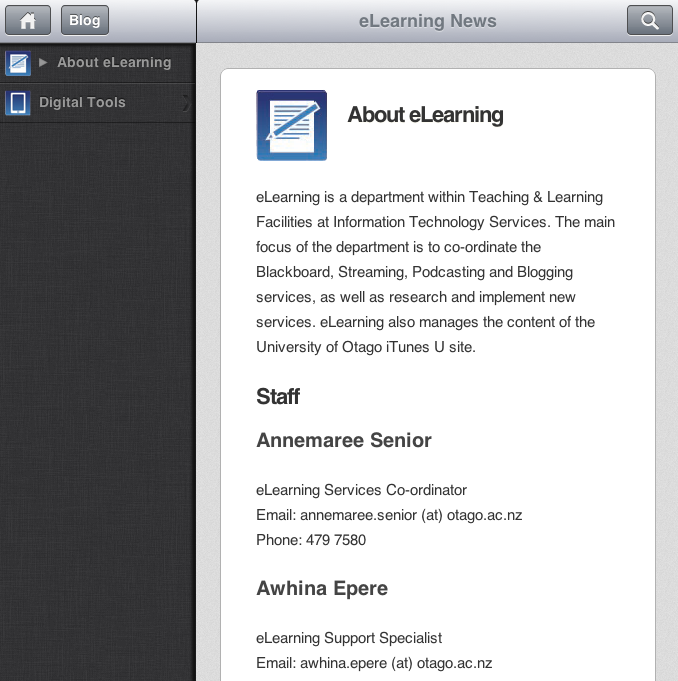
- iPhone
- iPod Touch
- iPad
- Google Android
- Blackberry OS6 devices like the Torch and new Bold
- Most Samsung touch devices
- Many other smart phones will also see the mobile version of your site
WPTouch Pro is created by Brave New Code and they are constantly adding new features and devices to the plugin. If you want to find out more about the product being used on Otago Blogs and Podcasts visit their site: http://www.bravenewcode.com/store/plugins/wptouch-pro/
How do I get a mobile version for my blog?
WPTouch is set up by default on all blog (and podcast) sites. If you don’t see a mobile theme when you visit your site scroll down to the bottom of the site and you should see a link that will switch the themes for you. This means if you ever want to see the normal version of your site you can.
Customising the mobile version
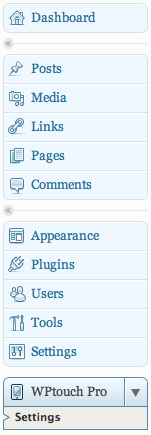 WPTouch gives you several options to customise your mobile theme – from changing the menu icons to turning the iPad theme on and off.
You can find the WPTouch settings in the WPtouch Pro section of your Dashboard – it is at the bottom of the menu. In the settings there are 3 main areas:
- General
- Active Theme
- Menu + Icons
Menu + Icons
Use this tab to customise the menu that is displayed in the mobile version. In the Menu + Icons > General Settings area you’re able to choose which menu is used (you might want to use one that is different from your normal site).
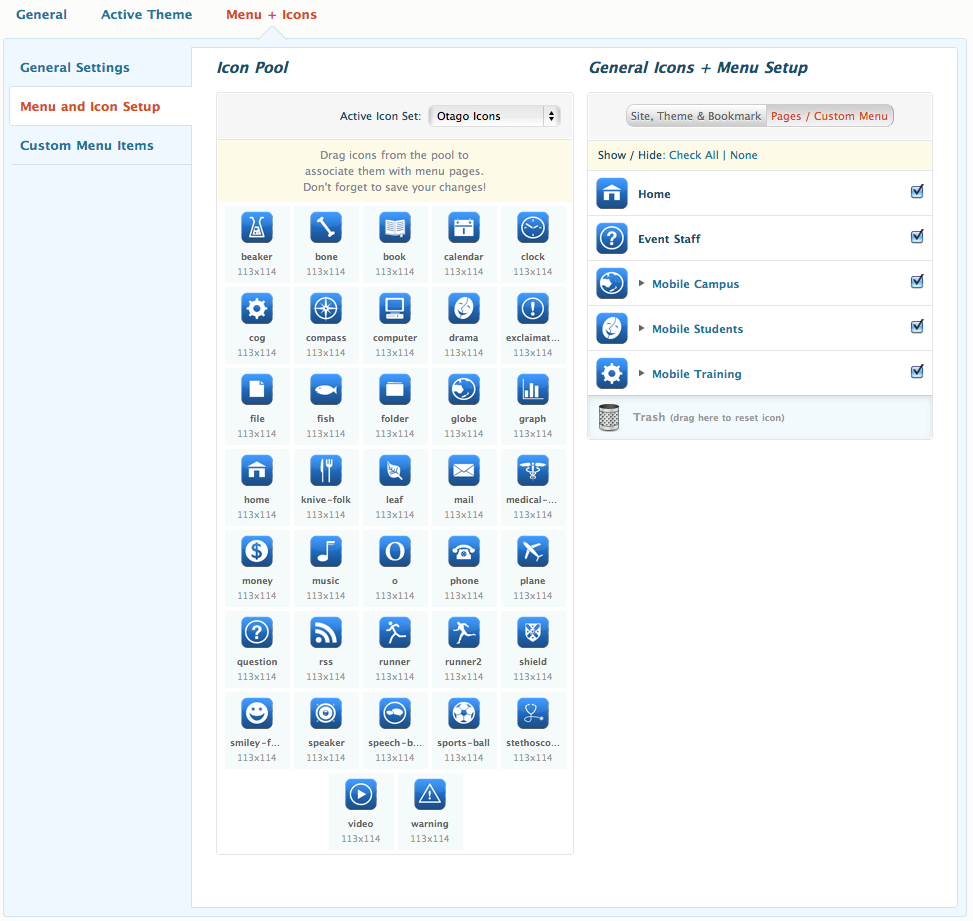 In the Menu + Icons > Menu and Icon Setup area you’re able to choose which icons are displayed in the menu. You can pick the basic Site, Theme & Bookmark icons as well as the Pages / Custom Menu icons. You can pick icons from a variety of different sets including an Otago set of icons.
iOS Web-App Mode
Web-App mode allows iPhone, iPod Touch and iPad users to bookmark a copy of your site to their homescreens as a web application.
To do this go to the Active Theme > iOS Web-App Mode section and click Enable Web-App Mode. Make sure you click Save Changes at the bottom of the page when you’re finished.
When an application loads on an iPhone (or similar) it can be useful to have a splash screen (loading screen). If you’d like to have a splash screen make sure you select the final option on the page Use startup splash screen. You will need to provide some images for this. Below are two default screens you can use if you’d like:
 |
 |
| URL for iPhone: https://blogs.otago.ac.nz/files/2011/09/podcast-load-screen.png | URL for iPhone: https://blogs.otago.ac.nz/files/2011/09/blogs-load-screen.png |
| URL for iPad: https://blogs.otago.ac.nz/files/2011/09/podcast-load-screen.png | URL for iPad: https://blogs.otago.ac.nz/files/2011/09/blogs-load-screen.png |